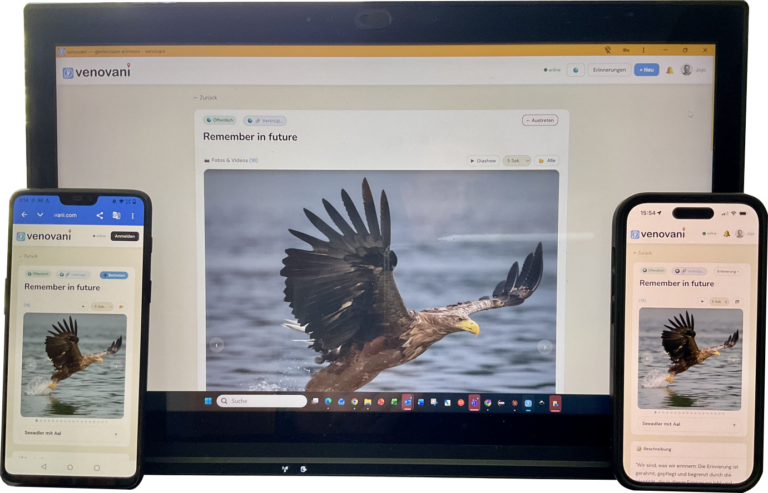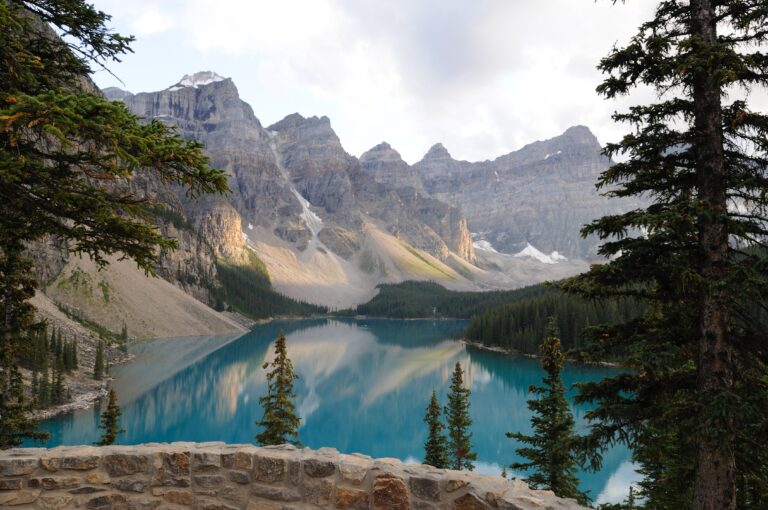
Vacations & Experiences
Experiences are there to be shared
- especially in private!
Collect these snapshots in your memory, e.g. in your own personal year in review. You can use the hashtags to find everything important for you later.
Pack your great photos and videos into a shared memory! And now you can finally see yourself in the photos.
And friends and acquaintances can see where you are and what you have experienced. Shared joy is beautiful joy.
Too bad! Simply collect them in a reminder and share them with each other. Create a reminder, send a link, upload photos or videos and you can relive everything in the comments.
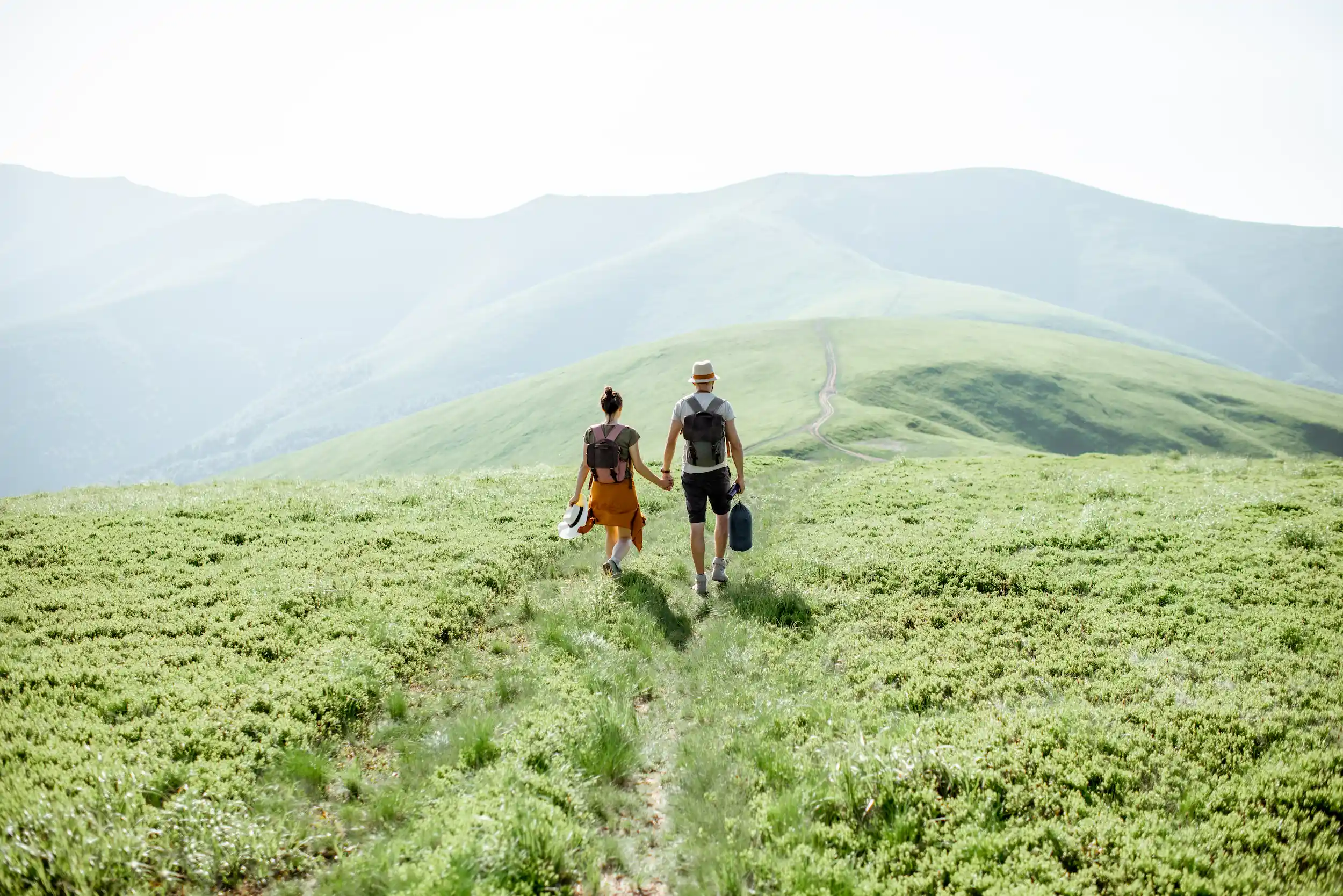
Share venovani with your family and friends
Take the opportunity to capture your memories of vacations or family celebrations together and share them with family or friends – completely privately!
It’s just nice to relive celebrations or see where you went on vacation. And when you build up the memories on vacation, your family or friends are right there with you 🙂
Or use a reminder as your own private diary.
What our users think
"The app gives you the opportunity to capture the best moments in your life virtually and display them on a world map. Easy to use and versatile, I'm thrilled!"
"The ability to assign the pictures to the location and share them with friends is great! The app is very easy to use. Which is another big plus!"
"Browsing through the memories is simply fun. It's also really nice to be able to see the locations of the snapshots taken on the integrated map. This means you no longer have to puzzle over where one or two photos/videos were taken."
"It is very easy to save your experiences and photos based on location and time. You can share memories with your friends without violating their privacy. I would also like friends to be able to post photos in shared memories. Then it would be perfect! I'm excited! Update: it's great that photos can now also be added in their original aspect ratio!"
"Really good idea. Years ago I wanted to make a memory album with a map showing all the locations of the photos, but I gave up at some point. And now I've discovered venovani and the app can do just that! You can create private or public memories and share them with others via a link. The others don't necessarily have to be venovani users to view the photos. And €1.99 for a year is really not that much. All in all, really cool!"
Remember and share the best moments with photos and videos
venovani is the first photo book with videos!
Whether it’s vacations together, family celebrations or a private diary – with venovani you always have all your memories with you.
You can use the world map to display the locations of your photos and videos. You can change the location at any time.
You can take photos or videos directly from the app or select them from your gallery. Remember that your videos are a maximum of 10 seconds long. Use the option to describe your photos or videos. You can also change the date at any time.
You can create a photo book from your memories, have it printed, and have it shipped to you. You can choose from a variety of formats and paper types. You can also decide which photos or videos you want to include and whether you’d like to add descriptions, a map, a chat feature, and QR codes.
You can share your memories with friends and acquaintances directly via your smartphone. You can also make the link available via a QR code. Scan and become a member of your memory.
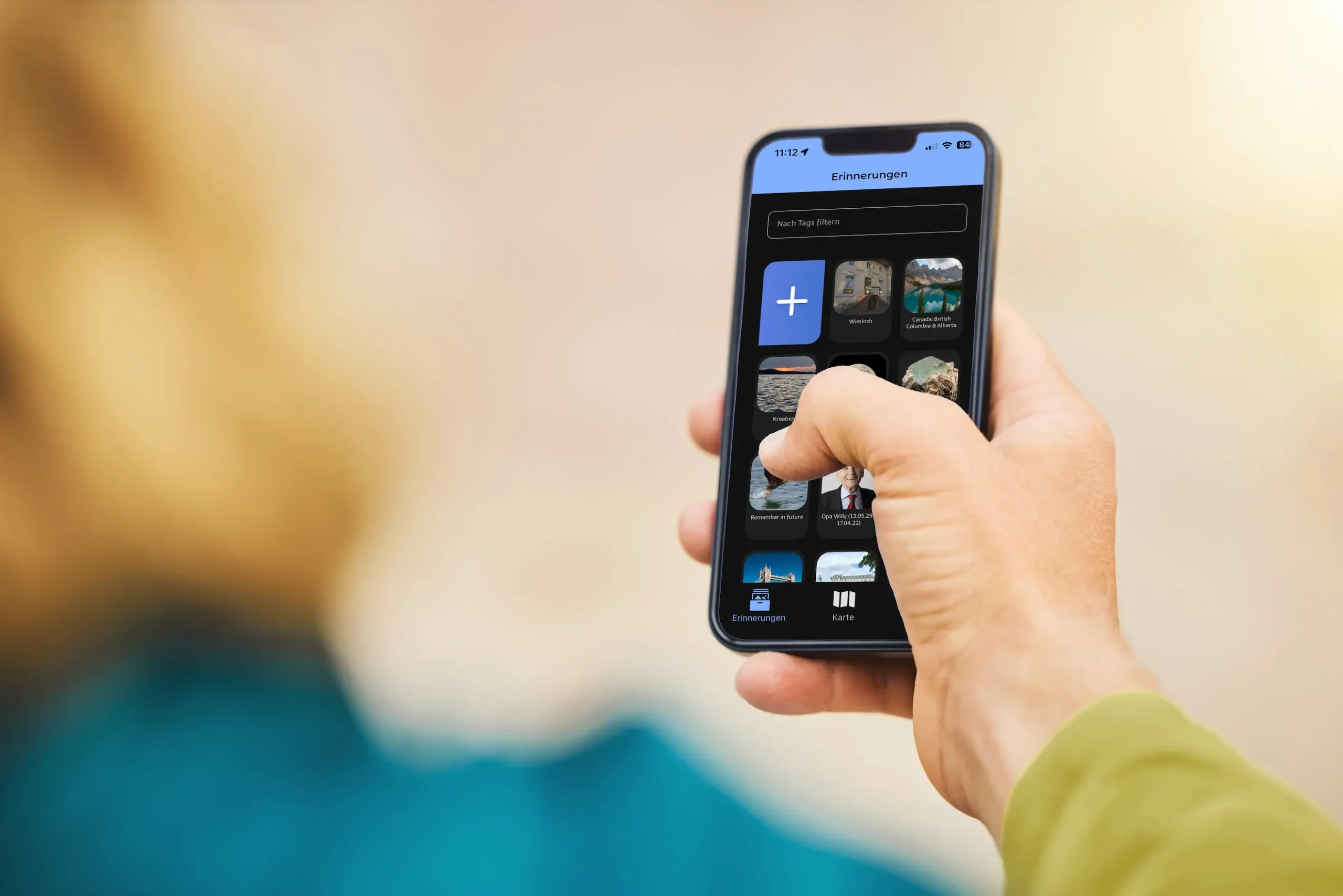
Your life - your memories
Why your new app
With venovani you always have all your memories with you
Download the app from the PlayStore or AppleStore and off you go. Create a memory, select and assign photos and videos, done. You can also issue a QR code and invite friends and family to become members of your reminder and add photos or videos to this reminder.
Do you have questions about venovani?
How does venovani work?
We answer the most frequently asked questions about venovani here. If you have any further questions, please feel free to contact us directly!
Activate the location data in your photo and video app. The mapping on the world map will then be done automatically. If this location data is not available, your current location will be used. And if this is also not available, the location of the first photo is used. And if that is not available either, you will end up in Berlin 🙂
Yes, but only the owner of the photo or video. And this is the one who put it in the memory.
Yes, but only to the exact day. And this can only be done by the owner of the photo or video, i.e. the person who added it to the memory.
Only the administrator - i.e. the creator of the reminder - can do this.
However, the link can then be forwarded by anyone.
If you want to ensure that the reminder cannot be called up immediately with the forwarded link, the PIN can be set in a private reminder. In this case, a new member of the reminder must first enter the PIN.
Yes, regardless of whether it's a photo, video or comment entry: if you block a member of the reminder, you will no longer see any posts from them.
To do this, go to the menu of a photo, video or comment by clicking and holding on the respective post. There you will find the entry "Block author".
Yes, as an admin, long press on another member of the reminder and confirm that you want to make this member an admin.
Actually almost everything - if you are the admin of the reminder. You can change the title and description. You can change the following properties in the settings:
- Enable "Add photos and videos" for all members of the reminder
- Enable "Downloading photos and videos" for all members of the reminder
- "Public" or private setting of the memory
- Set "Protect reminder with PIN" if the reminder has previously been set to private - switching the PIN function on and off again creates a new PIN that is then only valid for this reminder
- "Change link" if the jump from the memory should be a different one
If you are the owner of a photo or video, you can change the following:
- Name
- Description
- Location
- Date
Yes, you can upload several photos from your gallery from a reminder or share several photos from the gallery in your reminder to venovani.
It is then cropped photo by photo and can be labeled and described.
Initially, the first photo in the reminder will be used as the cover photo. If you want to change this, go to the photo in the memory that you want to have as the cover photo and open the menu for the photo. To do this, either press and hold on the photo or on the triangle and then on the pencil in the photo/video. You will then see the entry "Use as cover photo" in the menu.
Currently only the creator of the photo or video. This can be done via the photo/video menu. To do this, either long press on the photo or on the triangle and then on the pen in the photo/video. You will then see the "Delete photo" entry in the menu.
To do this, the admin of the reminder must activate this function in this reminder. Please ask him to do so.
To do this, go to the reminder menu (the three dots at the top right) and see who has the star among the members. In most cases, it will be the person who sent you the link. This is because only the admin - i.e. the creator of the reminder - can retrieve the link or QR code.
Curiosity and knowledge
Get to know the world of venovani